Appearance
Quick Start User Guide
Use this guide to take an invoice from receipt to a confirmed SunSystems journal. It follows the order and screens in the supplied Word guide. For more detail, use the linked chapters in the sidebar.
The links to Invoices and Task List open the live BIS application. Sign in if prompted, then select the relevant invoice or task. Individual records cannot be linked here without their ID.
Before you start
You need a BIS account, access to the group responsible for your task, an invoice PDF or XRechnung XML file, and any required supporting documents. Open the BIS application in your browser. If your group membership was recently changed, sign out and sign in again.
The Invoice Creator Group uploads and edits invoices. It is not a reviewer group. Reviewers and the journal upload group are assigned separately.
1. Sign in and find your workspace
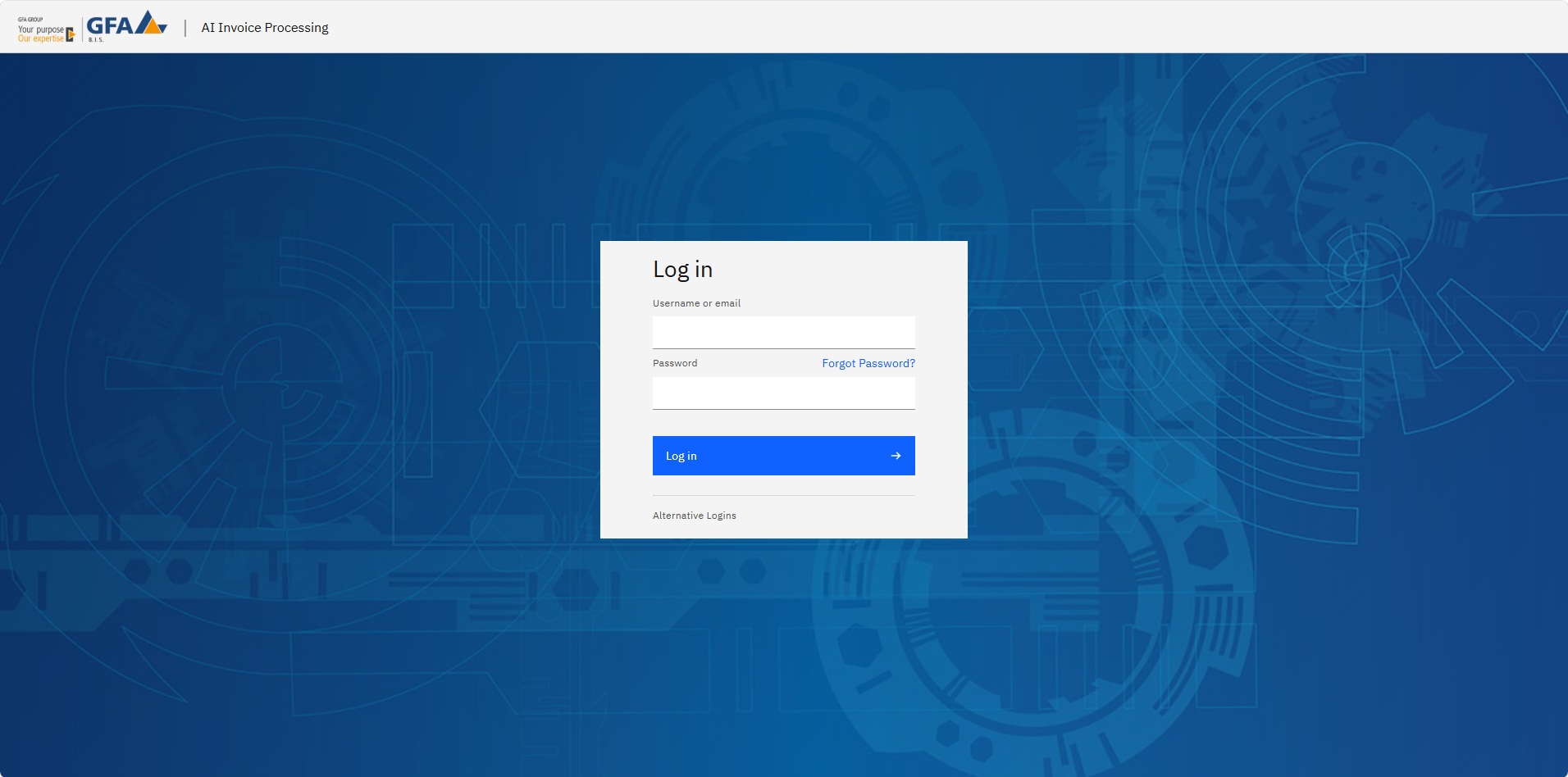
- Open the BIS application and select Login.
- Complete your organisation's identity-provider sign-in.
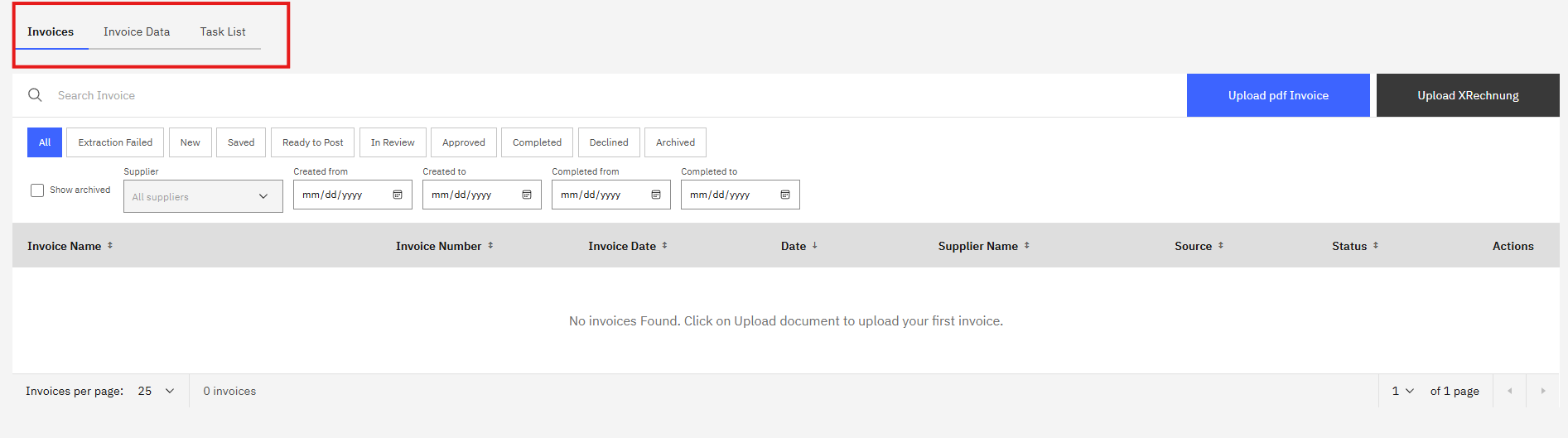
- Use Invoices to find or upload documents, Invoice Data to inspect or correct a selected invoice, and Task List to act on assigned tasks.
Document statuses
The Invoices list shows where each document is in the process:
| Status | What it means | What to do next |
|---|---|---|
| New | The document has arrived and its invoice data has not yet been saved. | Check the original and complete the invoice details. |
| Extraction Failed | Automatic extraction could not prepare the invoice data. | Enter a readable invoice manually, or correct and re-upload an unreadable or combined document. |
| Saved | Invoice data has been saved, but required details or a current payfile are still missing. | Complete the missing fields and generate a payfile. |
| Ready to Post | A current payfile has been generated. | Send the invoice for review. |
| In Review | The selected reviewer groups are working on their approval tasks. | Wait for their decision or respond to an amendment request. |
| Approved | Review is complete; the journal upload or its confirmation is still in progress. | The assigned upload group checks and confirms the journal payload. |
| Completed | SunSystems has confirmed the held journal upload. | No further BIS App approval or upload action is needed. |
| Declined | A reviewer rejected the invoice. | Read the review comment and follow your organisation's correction process. |
| Archived | The invoice has been moved out of the active list. | Use Show archived when you need to find it again. |
2. Upload or receive an invoice
PDF upload
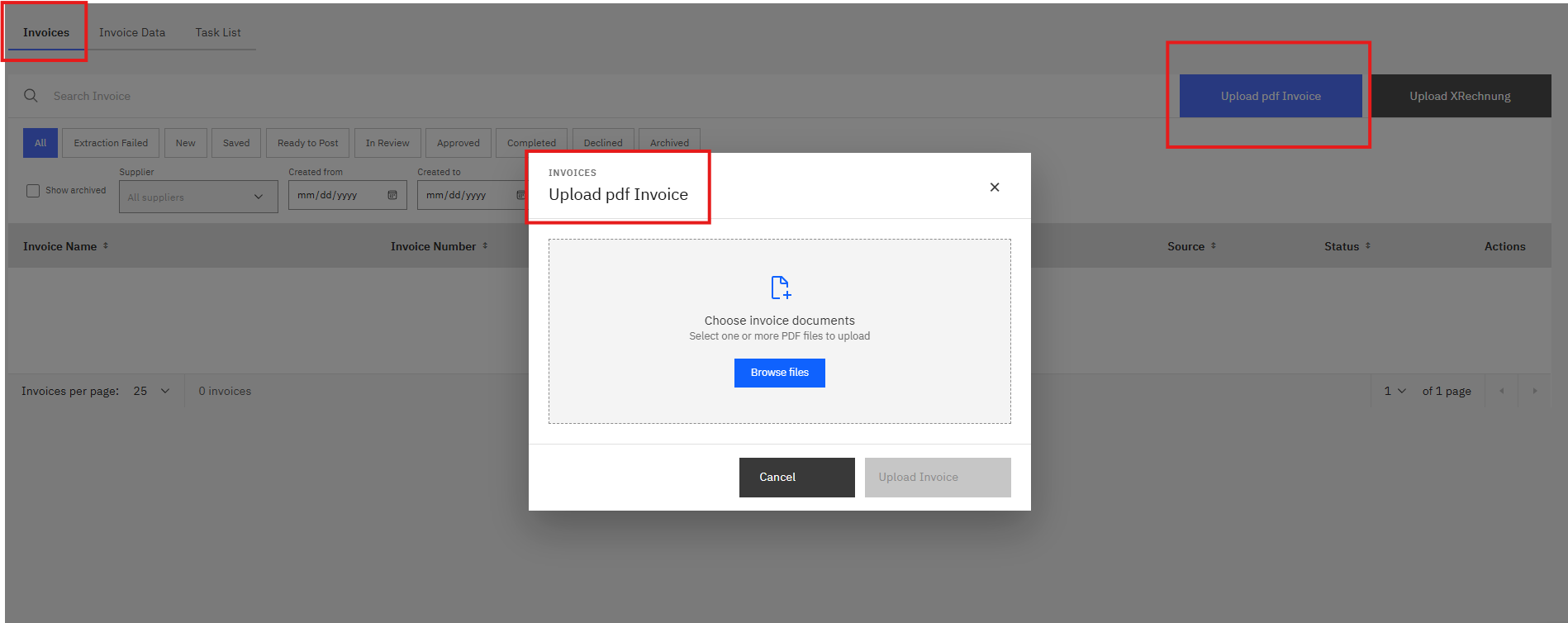
- Open Invoices and select Upload pdf Invoice.
- Choose one or more PDF files, then confirm the upload. Keep each invoice in its own PDF; separate a PDF containing multiple independent invoices before uploading it.
- Wait for storage and extraction to complete. Find the invoice in the list and choose Actions → View.
XRechnung upload
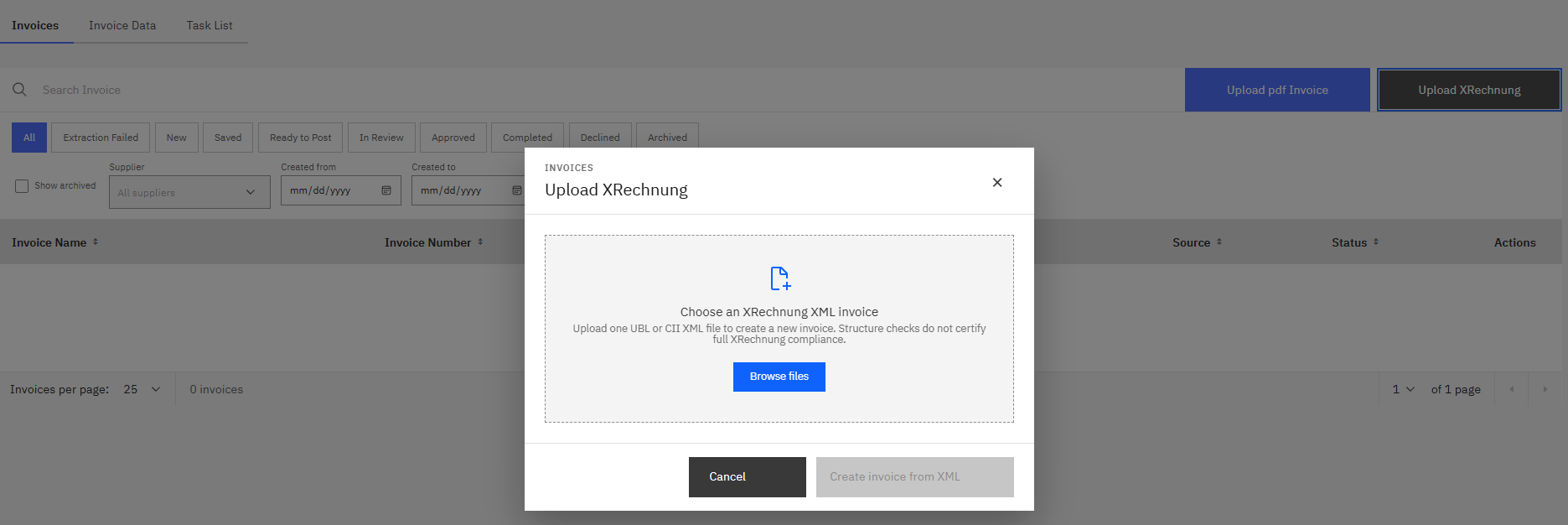
- In Invoices, select Upload XRechnung and choose one UBL or CII XML file.
- Select Create invoice from XML.
- Check the imported seller, buyer, invoice number, dates, totals, tax, and line items before continuing.
The upload checks XML structure; it does not certify full XRechnung compliance.
Email intake
Suppliers or internal teams can send a PDF to the configured invoice mailbox. Ask your administrator for its address. The invoice appears in Invoices after storage and extraction complete. If it does not appear, refresh the list and check Extraction Failed or ask an administrator to investigate the ingestion process. See all intake options.
3. Check and correct invoice data
- In Invoices, open Actions → View for the invoice. Invoice Data appears beside the original-document preview.
- Compare the supplier, invoice number and date, currency, beneficiary bank details, net/tax/gross totals, accounting fields, and every invoice line against the document.
- Add supporting documents when required and select Save changes. Complete any missing blue required fields.
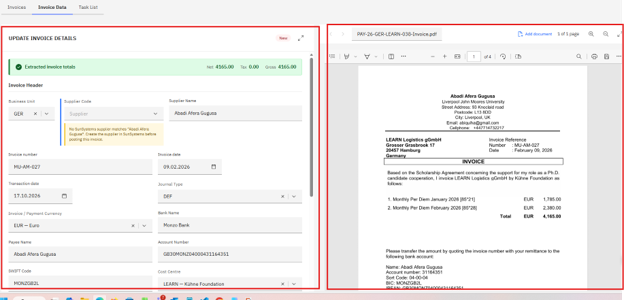
If automatic extraction failed but the original document is readable, an invoice creator can enter the details and lines manually, save, and continue without re-uploading. If the PDF is unreadable or contains multiple invoices, correct or split it first. See create and prepare an invoice.
4. Generate a payfile and send for review
- Once the required details are complete, select Generate Payfile.
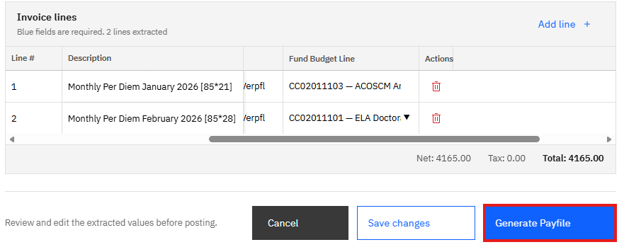
- Wait for the payfile reference and Ready to Post status.
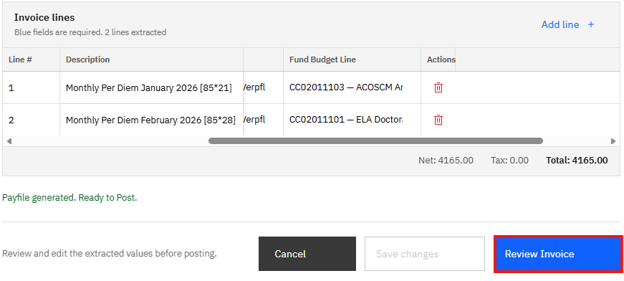
- Select Review Invoice. The Send invoice for review window opens.
- Under First approver group, select from CEO, Head of Program, or Management Assistant. If more groups must approve, select Add reviewer group and choose the second and, if needed, third group. Select only the groups required for this invoice. You can choose up to three different groups; one member of each selected group completes its approval. Invoice Creator Group and Invoice Viewers Group are not reviewer choices.
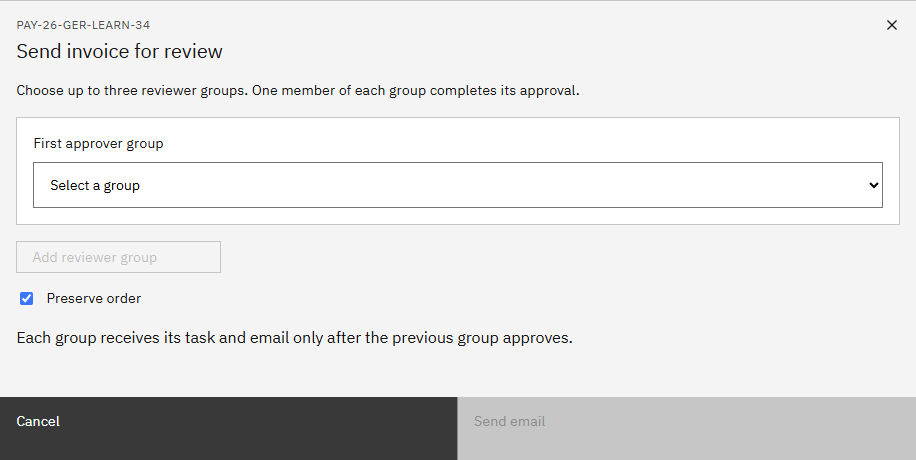
- Leave Preserve order checked if each group should receive its task and email only after the previous group approves. Clear it if all selected groups should receive their tasks together. Every selected group must approve either way. Use Move earlier or Remove if you need to change the selection.
- Check the selected groups and select Send email to start the review. The button becomes available after you select a valid group.
After review begins, the invoice becomes In Review and its data is read-only. If you edit it before starting review, regenerate the payfile so it reflects the new values. Do not start a second review for an invoice already In Review. See review and approve invoices.
5. Act on an approval task
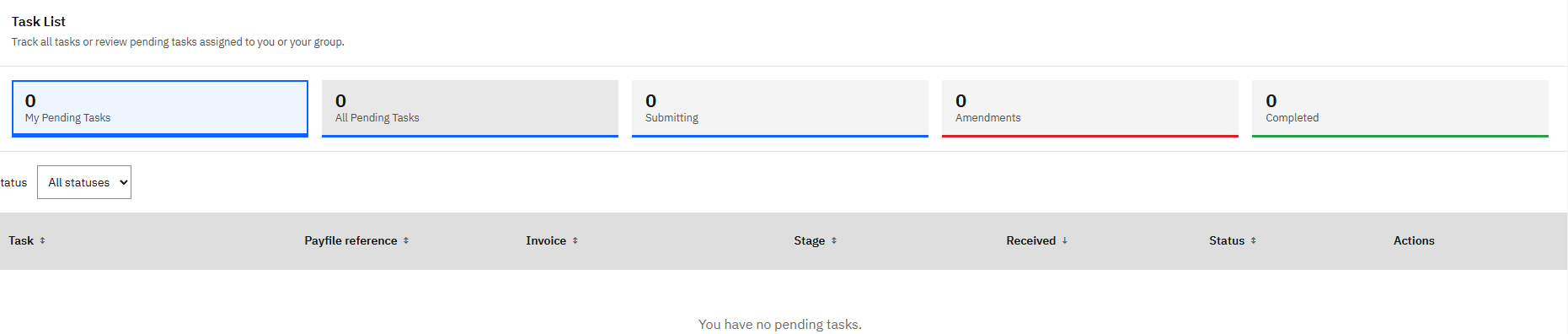
- Open Task List → My Pending Tasks and open your group's task, or use its email link.
- Compare the payfile, original invoice, supplier, totals, and accounting data. Check Approval Information for the current stage.
- Select Approve Invoice, Request amendment, or Decline Invoice. An amendment or decline requires a comment. The final reviewer also chooses the Payfile upload group before approving.
One authorised member acts for the whole reviewer group. If another member has already responded, the link shows the outcome and cannot be used again. Invoice Creator Group and Invoice Viewers Group cannot be selected as reviewers.
6. Confirm the journal upload
After all required reviewers approve, the selected upload group receives an Upload to SunSystems task.
- Open the task in Task List and select View Payload.
- Compare the journal lines, accounts, amounts, currency, and analysis codes with the approved invoice and payfile.
- Check the authorisation box, then select Confirm upload to SunSystems.
- Track the result until SunSystems confirms the held journal and BIS shows Completed.
This action submits a held journal; final ledger posting is performed separately in SunSystems. If confirmation is uncertain or an upload fails, verify whether SunSystems already created a journal before any correction or retry. See confirm the SunSystems upload.
7. Track work or solve a problem
Use Task List filters for pending, submitting, amendments, and completed work. Use the Invoices status tabs and search to find documents. Keep the invoice number, payfile reference, and Process ID when asking for support.
If an invoice is missing, a supplier cannot be matched, a task is unavailable, or a journal upload needs attention, start with common problems.